Settings
The Settings button in the top-right corner of the main window opens the preferences, seven tabs across the top. This page explains what each switch does, what happens if you turn it off, and when you would want to touch it.
In a hurry? Only two of them matter to most people:
- Advanced → Override system context menu — the answer when the context menu doesn’t appear in iCloud, OneDrive or Dropbox folders
- Diagnostics → Fix Root Permission — the answer when scripts that need administrator rights won’t run
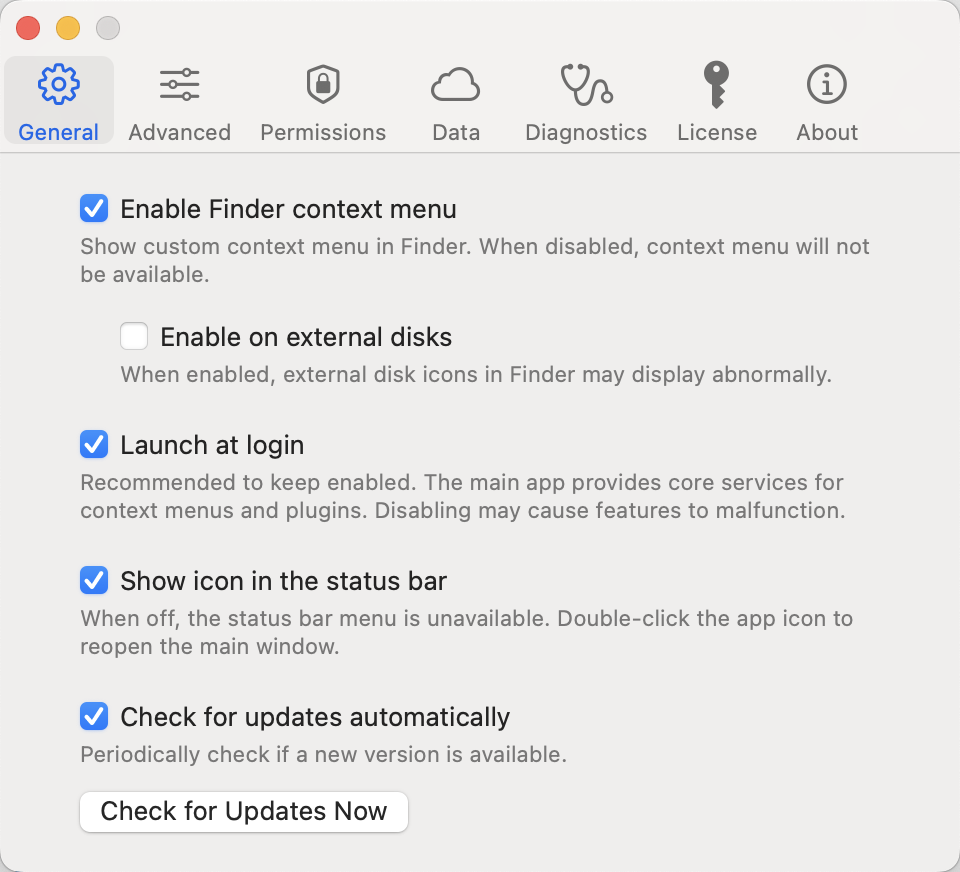
General
Five switches, all normally on.
| Switch | What it does | What happens if you turn it off |
|---|---|---|
| Enable Finder context menu | The master switch | The context menu disappears entirely; nothing you configured in the editor takes effect |
| Enable on external disks | Shows the menu on USB sticks, external drives and SSDs | No custom menu on external volumes |
| Launch at login | Starts the main app when you log in | Keep this on — see below |
| Show icon in the status bar | The menu bar icon | No entry point for the status bar menu. Before turning it off you are reminded that double-clicking the app icon reopens the main window |
| Check for updates automatically | Periodically looks for a new version | No more prompts; you have to use Check for Updates Now |
About Launch at login: the context menu and plugins are actually executed by the main app — the Finder extension only draws the menu and forwards clicks. When the main app isn’t running, clicking a menu item starts it first, so the first action is a beat slower. Turning this off does not break anything, it just makes that first action slow, which is why we suggest leaving it on. You are asked to confirm when turning it off.
About external disks: with this on, external disk icons in Finder may render oddly. That is a side effect of the macOS Finder extension mechanism, not a bug. If you never use the context menu on external drives, feel free to turn it off.
Advanced
Everything on this tab is off by default. Read the trade-offs before turning anything on.
Accessibility Mode
The first two switches both need Accessibility permission (System Settings → Privacy & Security → Accessibility), because they listen for global mouse events, which macOS requires authorisation for.
Override system context menu
This is the fix for iCloud and cloud folders.
On macOS, iCloud Drive, OneDrive, Dropbox and similar folders are managed by the File Provider framework. Finder extensions get no menu entry point inside those folders — that is a system limitation, not something the app failed to implement.
With this on, iRightMenu Pro listens for right-clicks itself and shows your configured menu anywhere, cloud folders included.
The trade-offs, before you turn it on:
- Requires Accessibility permission
- What pops up is a menu we draw, not Finder’s native one. The system items are preserved through System menu position below
- It briefly uses the clipboard: to know which files you have selected, it simulates a “copy path” and then restores the clipboard. The whole thing takes about 0.15 seconds. In the rare case that you paste during exactly that moment, you may get a path instead of what you had
- It applies globally, not only in Finder
If you don’t need the menu inside cloud folders, leave it off.
System menu position
Where Finder’s own items go while override mode is on:
| Option | Result |
|---|---|
| Below (default) | Your items on top, the system’s below |
| Above | The system’s on top, yours below |
| Don’t Show | Full replacement — only your items remain |
Below is the sensible default: what you configured yourself is usually what you reach for, and the system items (Open, Get Info, Move to Trash) are still within reach.
Enable middle-click menu
Shows your menu when you click the middle mouse button. Also requires Accessibility permission. Handy if you want to use the menu as a quick launcher — no need to move the pointer onto a file, just press the wheel.

Plugin Security
Allow unsigned plugins
Off by default. Leave it off.
Plugins from the store are signed, so their origin can be verified and their contents proven unmodified. This switch lets unsigned ones through — typically your own, or a .rmx someone sent you directly.
Plugins run real code with real system access: they can read and write files, run commands, reach the network. Installing an unsigned plugin of unknown origin means letting it do all of that as you. Turn this on only when you trust the source, and feel free to turn it back off afterwards.
Script Environment
Appends environment variables to every script menu, one KEY=VALUE per line.
PATH=/opt/homebrew/bin:/usr/local/bin
LANG=en_US.UTF-8
PATHis appended to the default paths rather than replacing them- Every other variable overrides
The usual reason to touch this is making Homebrew-installed commands findable. A Finder extension runs scripts with a shorter PATH than your terminal, so ffmpeg or convert working in the terminal but reporting command not found from a menu is almost always this.
Individual menu items can set their own environment variables on their Scripts tab; those apply to that one item only.
Data
iCloud Sync
Backs up your menu configuration and settings to iCloud so you can carry them between Macs.
- Backup to iCloud — uploads the current configuration
- Restore from iCloud — overwrites the local configuration with the one in the cloud. You are asked to confirm, and the app needs a restart afterwards
This is a manual backup and restore, not live two-way sync. Moving to a new machine: back up on the old one, restore on the new one.
The top of the tab shows whether iCloud is connected. If it says it isn’t, sign in to iCloud in System Settings.
Diagnostics
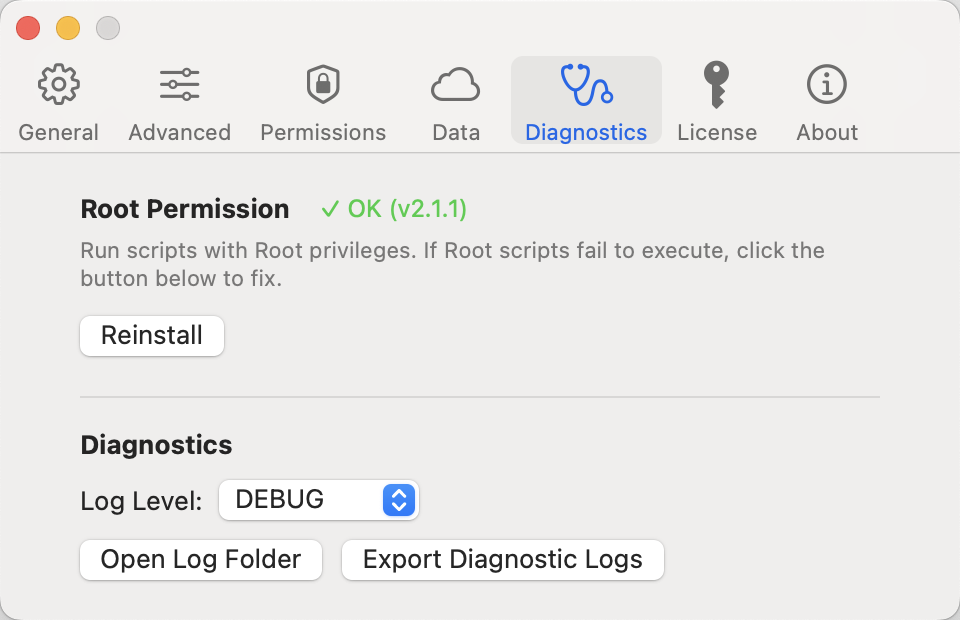
Fix Root Permission
Scripts needing administrator rights won’t run? Start here.
When a menu item’s Privilege is set to Administrator on its Execute tab, the work is handed to a privileged helper installed alongside the app. That helper occasionally stops working — after a system update, after the app has been moved, or because it never got installed in the first place.
This tab shows its status:
| Shown | Meaning |
|---|---|
| ✓ Normal (v…) | Nothing to do |
| ✗ Not installed | It never got installed — click Fix Root Permission |
| ⚠️ v… installed, needs updating to v… | Out of date — click the update button |
You are asked for an administrator password during the repair. Try your script again afterwards.
Logs
| Item | Notes |
|---|---|
| Log Level | OFF / ERROR / WARNING / INFO / DEBUG / VERBOSE. The default is fine; raise it only while investigating something |
| Open Log Folder | Opens the log directory in Finder |
| Export Diagnostic Logs | Packages everything into one file to send us when reporting a problem |
DEBUG and VERBOSE produce considerably more output. Turn it back down when you’re done.
Permissions
This tab lists the four kinds of system permission plugins may need, each with its current status:
| Permission | Used by |
|---|---|
| Accessibility | Window management, keyboard simulation, mouse control, global shortcuts |
| Location | Location lookup, geocoding |
| Screen Recording | Screenshots, on-screen text recognition, QR code recognition |
| Bluetooth | Bluetooth device queries and monitoring |
There is no need to grant everything up front. An ungranted permission affects nothing else; a plugin will ask when it actually needs one, and granting it then is fine. Open System Settings jumps straight to the relevant pane.
License
Activation status, license key, expiry. Activation steps are in the FAQ.
About
Version, changelog, acknowledgements, contact details.
Find the setting by symptom
| Symptom | Where to go |
|---|---|
| No context menu at all | General → Enable Finder context menu; then see the FAQ |
| No menu in iCloud / OneDrive / Dropbox folders | Advanced → Override system context menu |
| No menu on an external drive | General → Enable on external disks |
| Scripts needing administrator rights won’t run | Diagnostics → Fix Root Permission |
A script reports command not found |
Advanced → Script Environment, extend PATH |
| The status bar icon is gone | General → Show icon in the status bar (double-clicking the app icon reopens the main window) |
| The first click on a menu is slow | General → Launch at login |
| Can’t install a plugin you wrote yourself | Advanced → Allow unsigned plugins (mind the risk) |
| Reporting a problem | Diagnostics → Export Diagnostic Logs |