Plugin Manager
Plugins add new capabilities to iRightMenu Pro — batch renaming, format conversion, re-signing IPAs and so on. Install one and you get a new menu. This page covers installing, managing, and how permissions work.
Want to write your own? See the Plugin Development Quick Start.
The interface
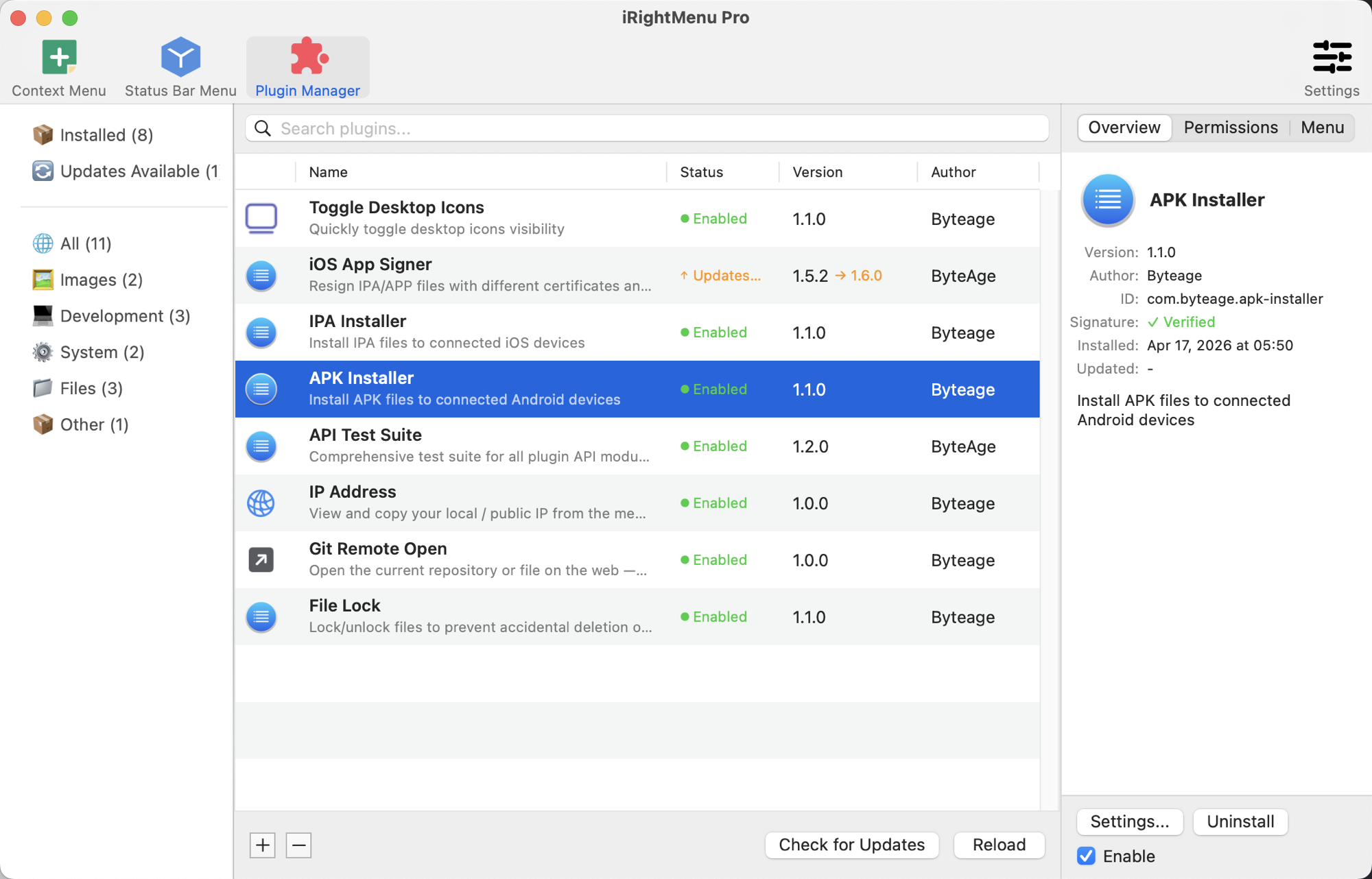
The third tab of the main window, Plugin Manager, has three panes:
| Pane | What it is |
|---|---|
| Left: categories | Installed / Updatable / All, plus by purpose: Images, Development, System, Files, Other |
| Middle: plugin list | Name, status, version, author |
| Right: plugin detail | Everything about the selected plugin, and the actions |
There is a search box at the top. All three panes can be resized, and the widths are remembered.
Installing a plugin
- Click All on the left to browse, or use the search box
- Select one and read its description, menus and permissions on the right
- Click Install
Afterwards the plugin’s menus appear in the Plugins group of the menu editor’s library. Drag one into your menu to use it.
Installed but no menu? Most plugin menus have to be added by you — a plugin only supplies menu templates, where they go is your call. The exception is resident plugins (below), which put themselves in the status bar.
Managing installed plugins
Select a plugin and act on the right:
| Action | Notes |
|---|---|
| Enable | The checkbox at the bottom right of the detail pane. Unchecked, the plugin’s menus stop appearing; its configuration and data stay, ready to be re-enabled |
| Uninstall | The button next to it. Removes the plugin completely, including the data it stored |
| Settings… | Only for plugins that provide a settings screen. What opens is a form the plugin itself defines |
| + / - | Bottom left of the list. + installs from a local .rmx file, - uninstalls the selected plugin |
| Check for Updates | Bottom right. Plugins with a new version move to Updatable on the left, and the version column shows 1.5.2 → 1.6.0 |
| Reload | Rescans and reloads every plugin’s Lua environment. Use it when you changed plugin code and want to see the effect immediately |
The detail pane
Three tabs across the top:
- Overview — description, version, author, identifier, signature status, install and update times; when an update is available, its changelog too
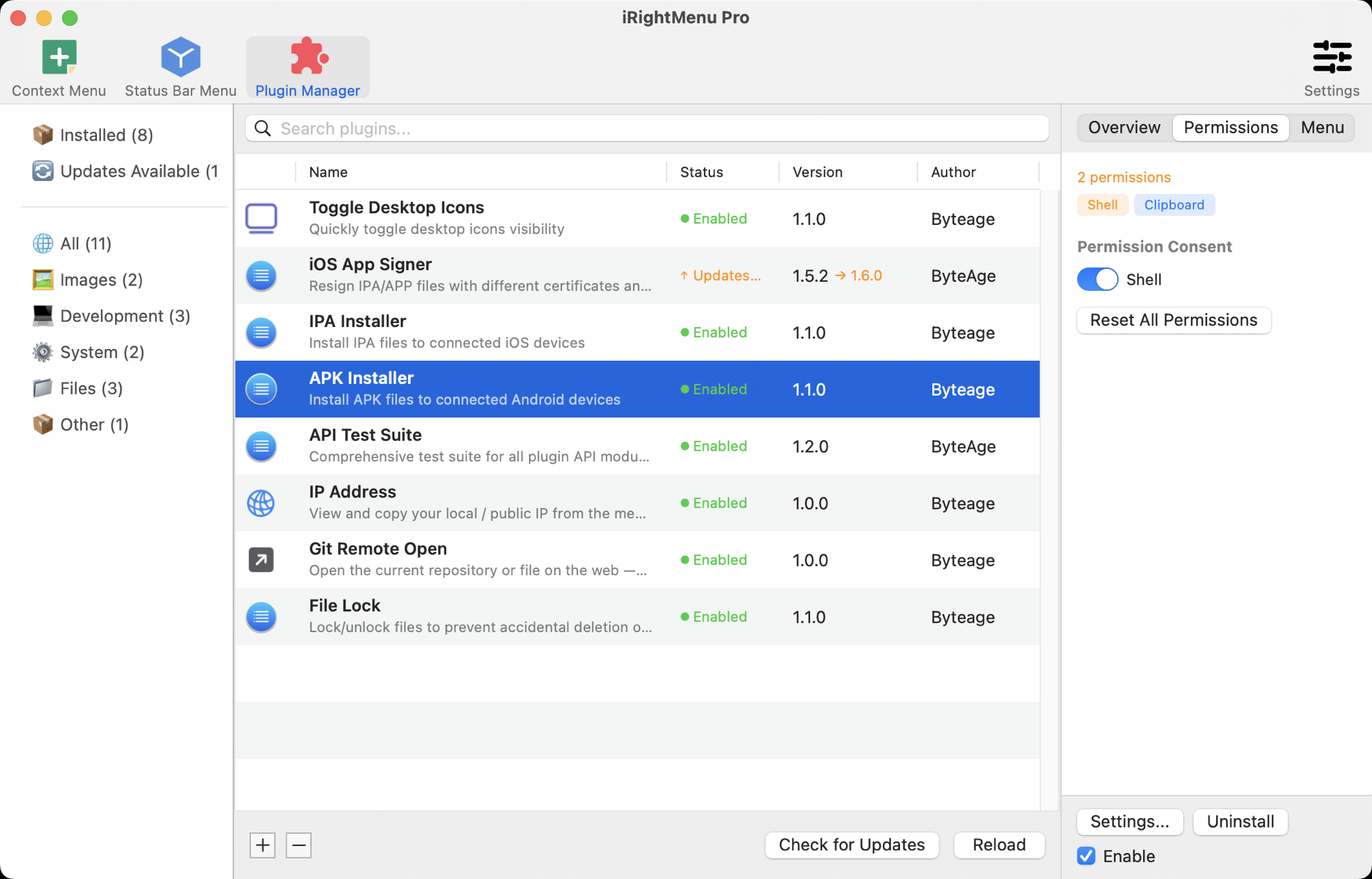
- Permissions — what capabilities it declares, and what you have authorised
- Menus — which menu items this plugin provides
Permissions
Plugins run real code: they can read and write files, run commands, reach the network. Every plugin therefore has to declare the capabilities it uses in its manifest; using anything undeclared is refused outright.
Capabilities come in three tiers:
| Tier | Examples | When you are asked |
|---|---|---|
| Always available | Writing logs, showing dialogs, reading the current selection | Never. These can’t do much harm |
| Declared is enough | Reading and writing files, network requests, storing secrets | Not asked separately, but listed under Permissions so you can see them before installing |
| Warned at install | Running shell commands, database access, process management | Explicitly flagged at install time; installation proceeds only if you agree |
The Permissions tab has two parts:
- At the top, every capability the plugin declares, colour-coded by risk (Command Line in orange, for instance, meaning sensitive). You can see what it wants before installing
- Under Permission Grants, a switch per sensitive capability. Only the tier that needs your consent appears here
Turning a switch off means the plugin is refused when it tries to use that capability — it will normally report the feature as unavailable rather than crash.
Reset All Grants clears every authorisation record for this plugin, so the next time it needs a sensitive capability it asks again. Useful when you want to review what a plugin wants after the fact.
Signatures
Store plugins are signed, which proves both where they came from and that their contents were not modified. The detail pane shows the signature status.
A plugin whose signature fails verification cannot be enabled — it is either damaged or has been tampered with, and neither should run.
To install something unsigned that you wrote yourself, first turn on Allow unsigned plugins under Settings → Advanced. That switch is off by default for a reason; read the risk before flipping it.
Resident plugins
A few plugins are marked Resident. They differ from ordinary plugins in two ways:
- They only appear in the status bar menu, never in the context menu
- They run in the background from launch, rather than only when clicked
That suits anything continuous — watching a folder, syncing on a schedule, showing live status. Toggles like “Toggle Desktop Icons” are resident too, because they need to know the current state to show the right title.
Since a resident plugin is always running, it is worth being that bit more careful about the permissions it asks for.
Troubleshooting
The plugin installed but its menu doesn’t show
Most plugin menus have to be added manually: open the menu editor, find the Plugins group in the left pane, and drag the item into your menu tree. Resident plugins are the exception — they go straight to the status bar.
The plugin says a feature is unavailable
Usually a permission that has been switched off. Check the corresponding switch on the Permissions tab.
Signature verification failed, can’t enable
The files are damaged or were modified. Uninstall and install again. For plugins you wrote yourself, allow unsigned plugins in Settings.
The plugin throws errors
Set the log level to DEBUG under Settings → Diagnostics, reproduce the problem, then use Export Diagnostic Logs and send it to us. A plugin’s own logs live in the Plugins subfolder of the log directory.
More in the FAQ.